
If your Epson printer is not connecting to your computer, it can interrupt your work and cause frustration. This issue is quite common and usually occurs due to connection problems, outdated drivers, or incorrect settings. The good news is that you can fix it quickly with the right steps.
Common Reasons Why Epson Printer Is Not Connecting
Understanding the cause helps you solve the issue faster:
1. Faulty USB Cable or Port If you are using a wired connection, a damaged USB cable or port can prevent your computer from detecting the printer.
2. WiFi Connection Issues For wireless printers, the printer and computer must be connected to the same network. If they are not, the connection will fail.
3. Outdated or Missing Drivers Drivers from Epson are essential for communication. If they are missing or outdated, your system won’t recognize the printer.
4. Printer Not Set as Default If another printer is set as default, your computer may not connect to the Epson device properly.
5. System or Software Glitches Temporary bugs in your computer or printer can also interrupt the connection.
How to Fix Epson Printer Not Connecting to Computer
Follow these step-by-step solutions to resolve the issue:
1. Check Physical Connections
- Ensure the USB cable is properly connected
- Try a different USB port
- Replace the cable if needed
2. Restart Devices
Turn off your printer and computer. Wait for a minute, then turn them back on. This refreshes the connection.
3. Connect to the Same Network
If using WiFi:
- Make sure your printer and computer are on the same network
- Restart your router
- Reconnect your printer to WiFi
4. Reinstall Epson Printer Drivers
- Visit the official Epson website
- Download the latest drivers for your model
- Install and restart your system
This is one of the most effective fixes.
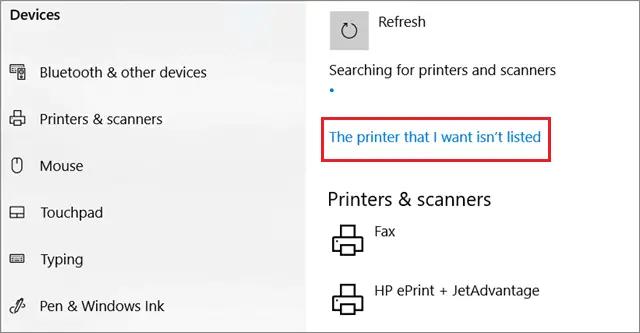
5. Add Printer Manually
- Go to Control Panel > Devices and Printers (Windows)
- Click Add Printer
- Select your Epson printer or add it manually using IP address
For Mac:
- Go to System Settings > Printers & Scanners
- Click + (Add Printer)
- Select your printer
6. Set Printer as Default
Make sure your Epson printer is selected as the default printer in system settings.
7. Disable Firewall Temporarily
Sometimes antivirus or firewall settings block the connection. Disable them temporarily and check if the printer connects.
Additional Tips
- Keep your system updated
- Use original Epson cables and accessories
- Avoid connecting too many devices to the same network
- Update printer firmware regularly
Conclusion
When your Epson printer is not connecting to your computer, it is usually due to driver issues, network problems, or incorrect settings. By checking connections, reinstalling drivers, and ensuring proper configuration, you can quickly fix the problem. Following these steps will help you restore a stable connection and get your Epson printer working smoothly again.